
Curated AGM gifting for shareholder distributions at organized scale.
Trusted by cooperative banks across Gujarat for shareholder, depositor, and member gifting programs — planned, branded, and dispatched with discipline.






Specialized procurement for every institution.
Each segment we serve has its own gifting culture, compliance, and scale. Our teams are organized to deliver to that specificity.
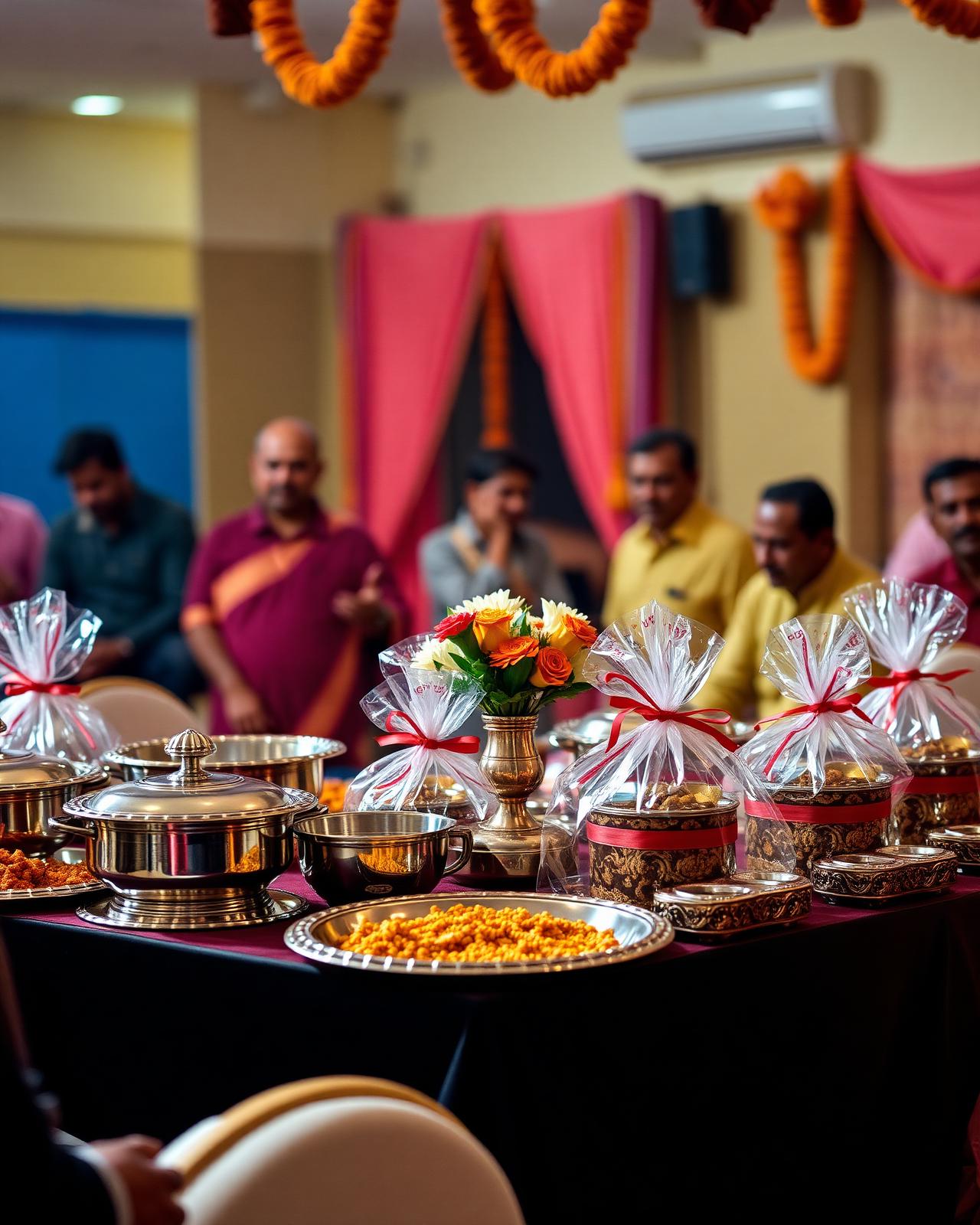
Cooperative Banks
AGM gifting, shareholder distributions, and member appreciation programs.
Credit Societies
Annual member gifting, savings campaigns, and milestone rewards at scale.
Corporate Companies
Dealer incentives, employee gifting, branding merchandise, and festive procurement.
Dealer Incentive Programs
Performance-led reward kits and recognition collections for distribution networks.
Samaj & Community Events
Samuh lagan gifting, donor distributions, padyatra kits, and event gifting.
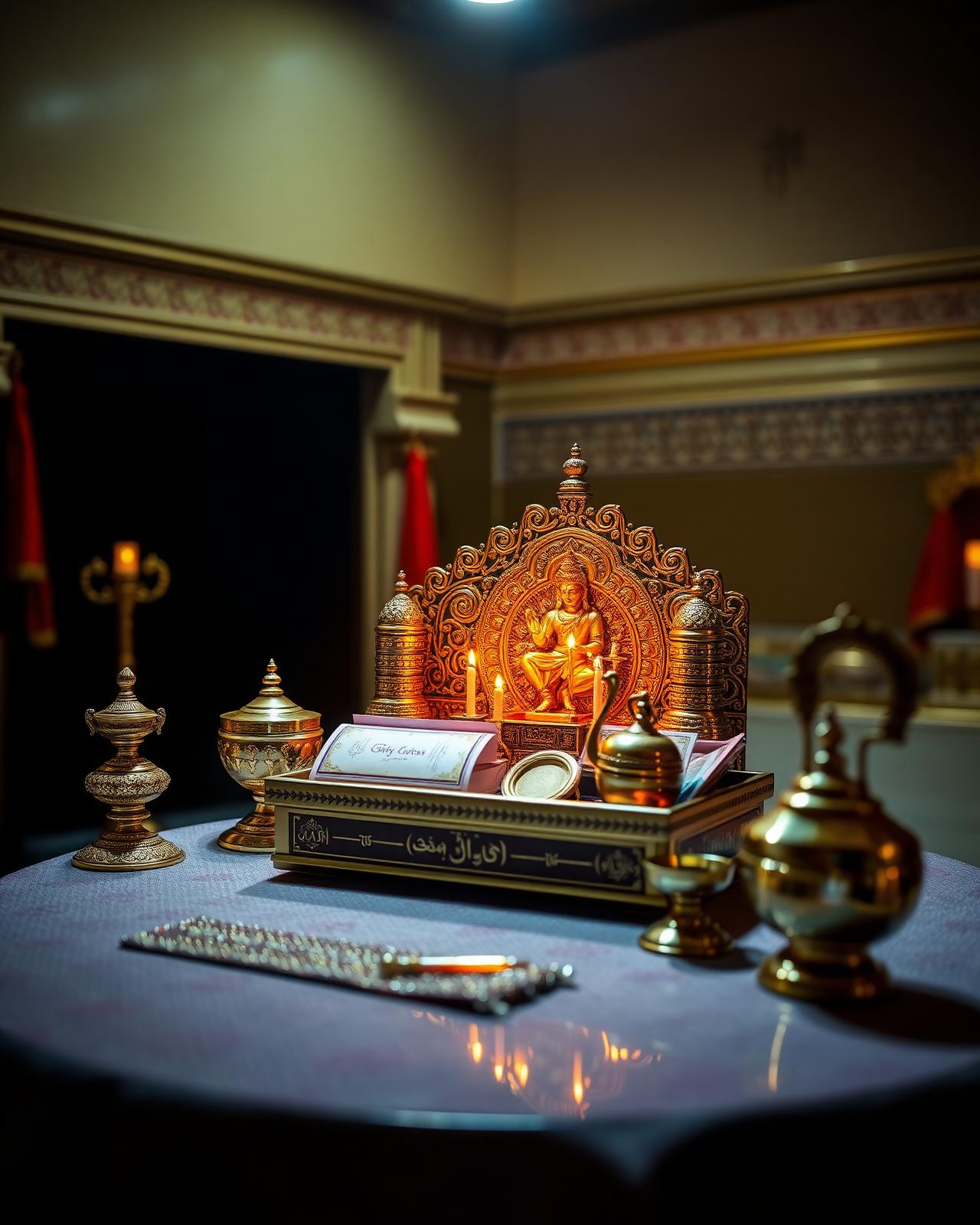
Religious & Temple Trusts
Pilgrim kits, Jain gifting collections, donor appreciation sets, and trust distributions.
Wedding & Social Gifting
Curated combinations for guest gifting, return gifts, and family functions.
Promotional Merchandise
Branded merchandise, festive hampers, and large-volume promotional procurement.
Built on operational capability.
Institutions choose Giftcare not for catalogue alone — but for the discipline, transparency, and scale behind every order.
Request Wholesale Pricing43+ Years Experience
A four-decade legacy of institutional trust.
16,000+ Products
One of Gujarat's deepest curated catalogues.
300+ Authorized Brands
Genuine, brand-authorized supply lines.
Pan Gujarat Delivery
Reach across every district & taluka.
Transparent Wholesale Pricing
Honest quotations, institutional rates.
Dedicated Procurement Support
Expert guidance for institutional gifting planning, quantity selection, and execution.
Custom Branding Support
Logo printing, custom packaging & inserts.
A curated universe of institutional gifting.
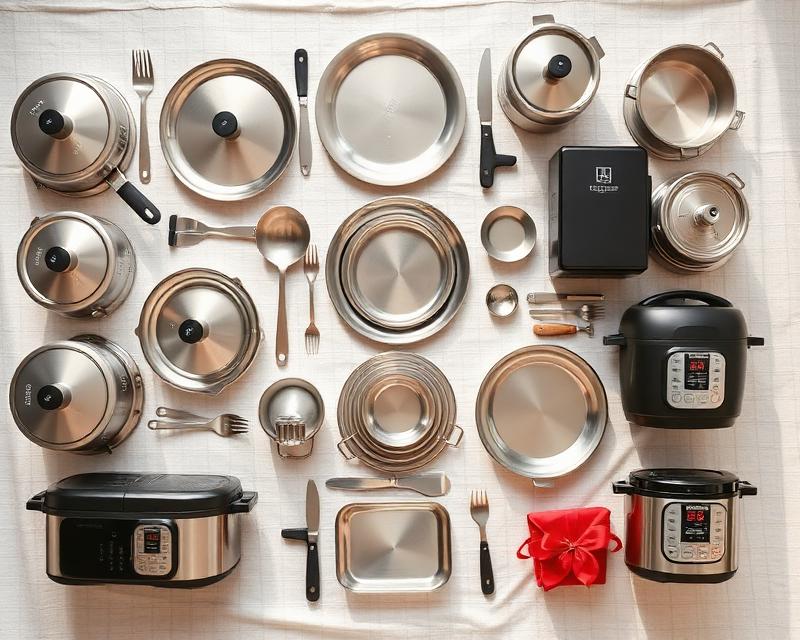
Kitchen & Cookware
Branded cookware, dinner sets, appliances.

Luggage & Bags
Premium trolleys, duffels, and travel sets.

Home & Lifestyle
Décor, linen, and lifestyle gifting.

Bottles & Drinkware
Insulated bottles, flasks, glassware sets.

Electronics & Appliances
Branded small appliances & gadgets.
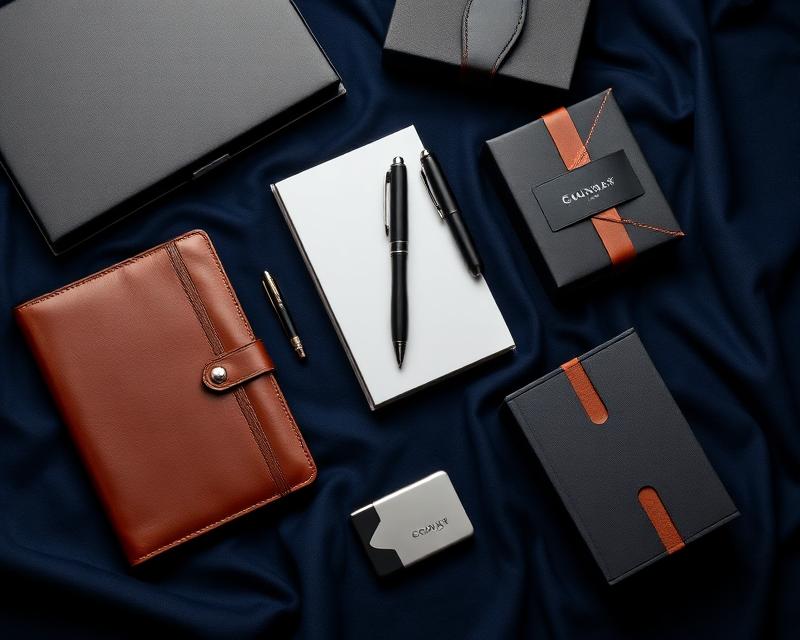
Corporate Merchandise
Curated executive & employee kits.

Promotional Products
Custom-branded promotional volumes.
Something Custom?
Don't see what you need? We create fully custom gifting solutions — any product, any quantity, any branding.
Talk to UsWalk through Gujarat's largest curated gifting showroom.
Compare cookware, dinner sets, bottles, luggage, and corporate hampers side-by-side. Plan combinations across price tiers with category specialists in private buyer cabins — all under one roof.
- Private meeting cabins for institutional buyers
- Procurement consultation with category specialists
- Combo planning across price tiers
- Bulk quantity support & on-floor sampling
- Side-by-side product comparisons
From inquiry to dispatch — organized.
Five disciplined stages keep every institutional order accountable, transparent, and on schedule.
Submit Inquiry
Share your requirement, quantity, and timeline.
Requirement Discussion
Our team understands segment, budget & purpose.
Visit Showroom
Compare combinations across 16,000+ products.
Quotation & Confirmation
Transparent wholesale pricing & GST billing.
Dispatch & Delivery
Daily dispatch, pan-Gujarat reach.
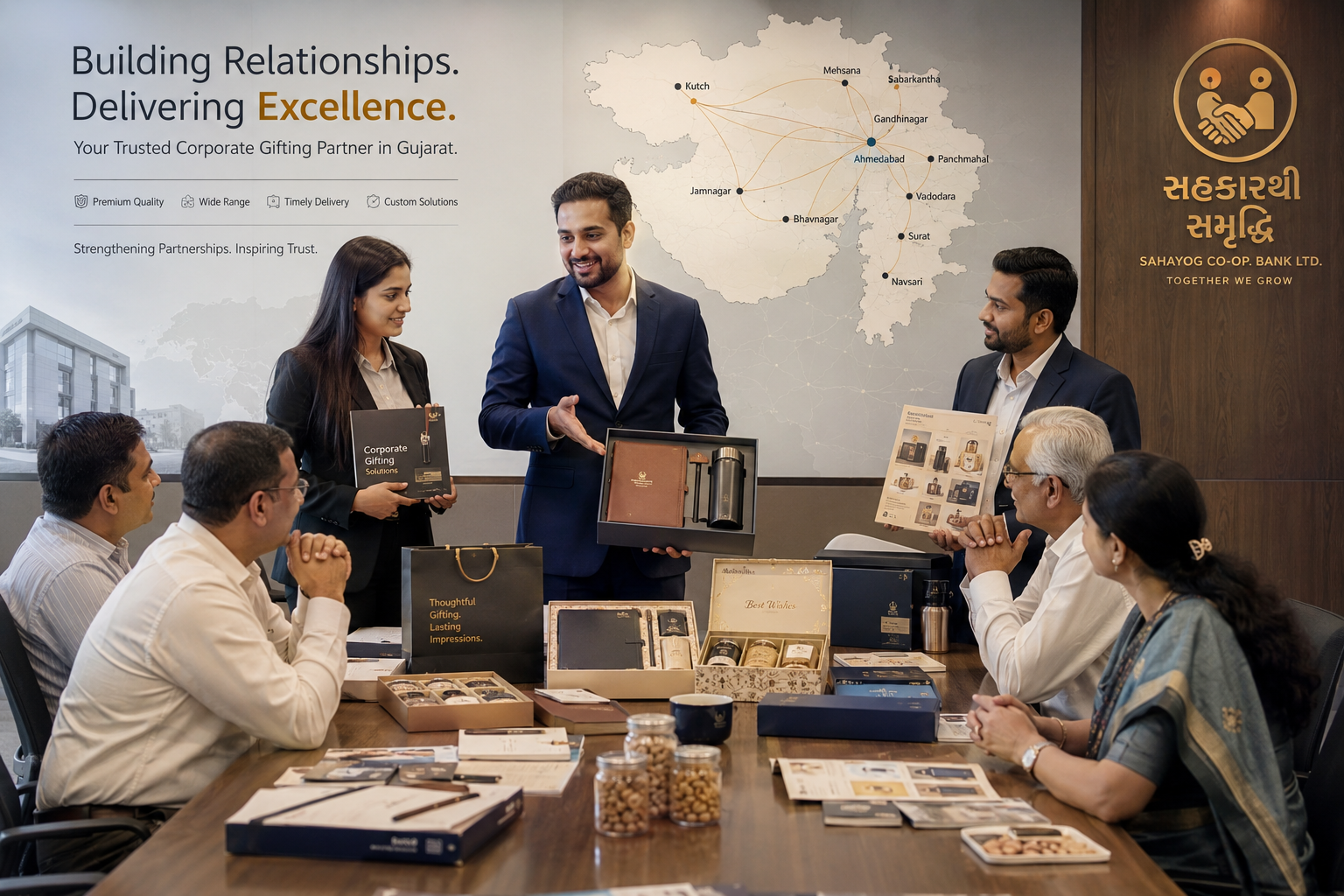
Procurement support that travels across Gujarat.
Our sales consultants personally visit cooperative banks, samaj associations, corporate offices, dealer networks and trust committees across Gujarat — carrying samples, catalogues and gifting combinations to your premises.
- Field executives travel district to district across Gujarat
- Product samples carried for in-person review
- Committees can compare combinations at their own office
- Gifting combinations and budgets discussed onsite
- Procurement decisions made without leaving your premises
A three-floor warehouse built for daily institutional dispatch.
From inwarding to packaging, billing, and outbound logistics — every operation is structured for scale, accuracy, and speed.

300+ brand-authorized
supply lines, sourced directly.
We procure straight from India's most trusted manufacturers — guaranteeing genuine product, transparent pricing, and assured availability for institutional volumes.











Trusted by leaders across Gujarat's institutions.
Nice store for all types of gifts. Especially when anyone wants to buy in bulk. They have lots of options for every type of gifts. They transport the goods at our place in all over Gujarat. If any group want to make purchase, it is the best place. Must visit. I like it very much. Satisfied totally. Thanks
Exhaustive range of gifts and others item but only wholesale; no retail. Quite a wide range and a spacious store. Must visit to explore, if someone wishes to procure more than 100 units. Basically a wholesale or distributor profile fits them. Must be on the hotline for any retailer stocking gifts or such items for it's clients in their respective localities and clientele.
Gift Care is my Best Choice for a Gift to Family members.... The owner and Staff are too supportive and also always give a smile to all.. Reasonable Rate and Quality items...
Visit our Ahmedabad showroom.
Meet our procurement team, compare gifting combinations, and explore thousands of institutional gifting solutions under one roof.
Grand Giftcare LLP
- AddressHare Krishna Complex, 101,
Opp. Kothawala Flat,
Ellisbridge, Ahmedabad,
Gujarat 380006 - Mobile
- Emailleads@giftcare.in
- Working HoursMonday – Saturday
10:00 AM – 7:00 PM
Ready to plan your next institutional gifting program?
Share your requirement and our procurement specialists will respond with curated combinations and transparent wholesale pricing.